Platform handbook
Student portal handbook
Everything a student does after login: courses, lectures, homework, progress, messages, and certificates.
Dashboard
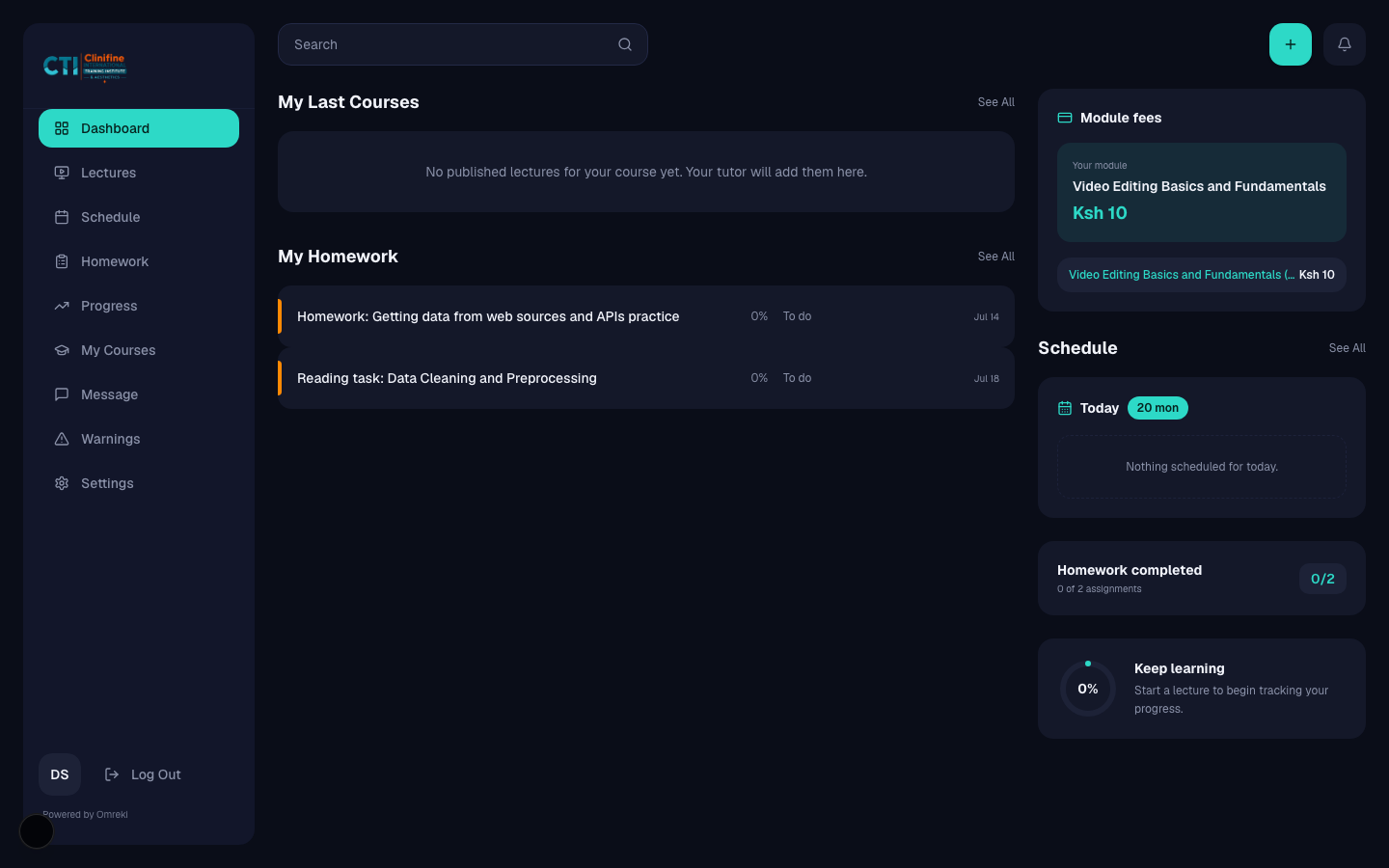
Home for continue-learning shortcuts, live stats, and warnings.
- 1
Open Dashboard
After login you land on /student. Review continue cards and any warning banner.
- 2
Jump into learning
Use shortcuts to Lectures or the active module from My Courses.
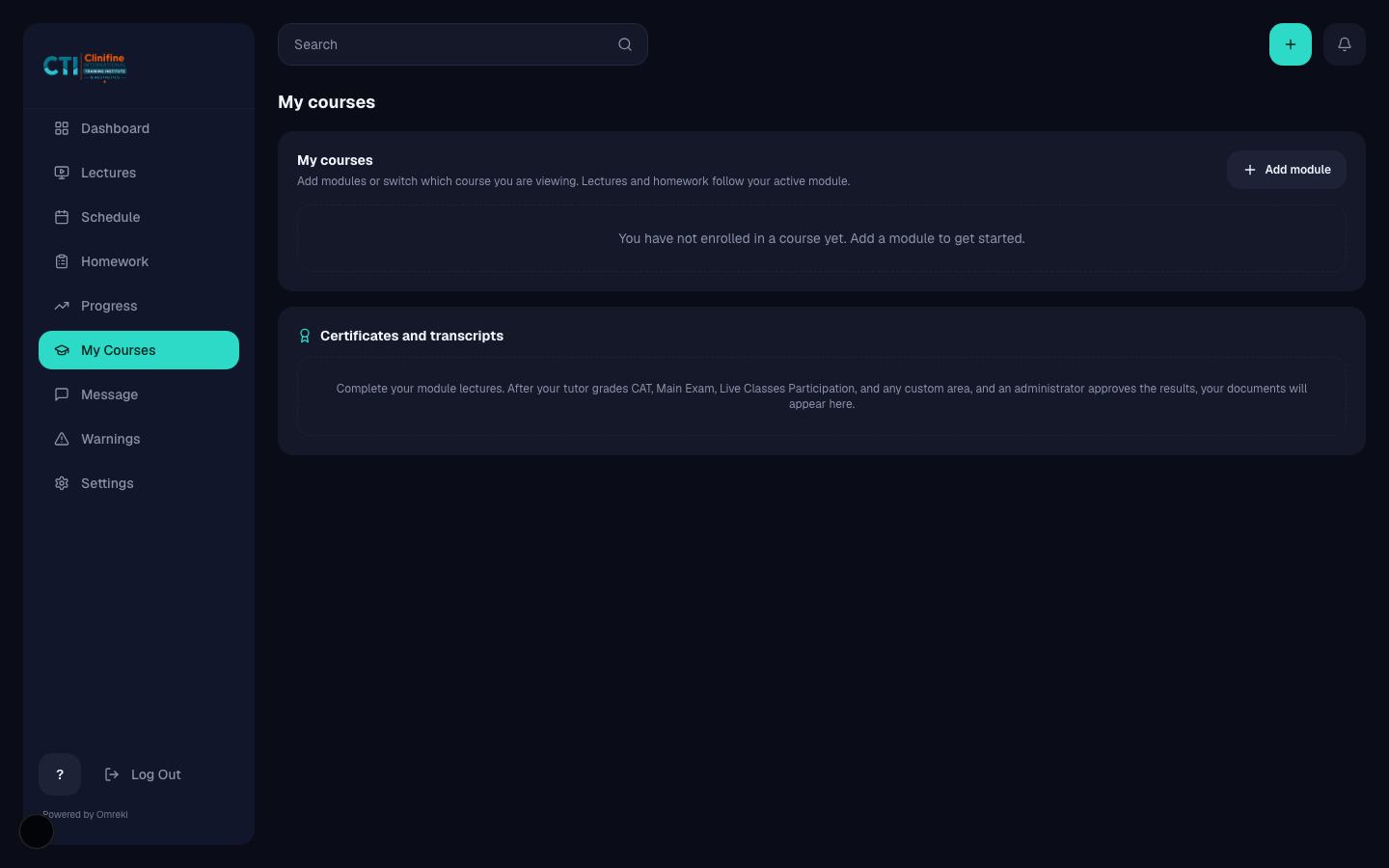
My Courses and enrollment
Manage active modules, add programs, pay pending fees, and view credentials.
- 1
Open My Courses
Go to My Courses (/student/enroll).
- 2
Choose or switch a module
Select the module you want active. The rest of the portal scopes to that module and cohort.
- 3
Pay if required
For paid modules, complete Paystack checkout. You return via the payment callback page.
- 4
Certificates and transcripts
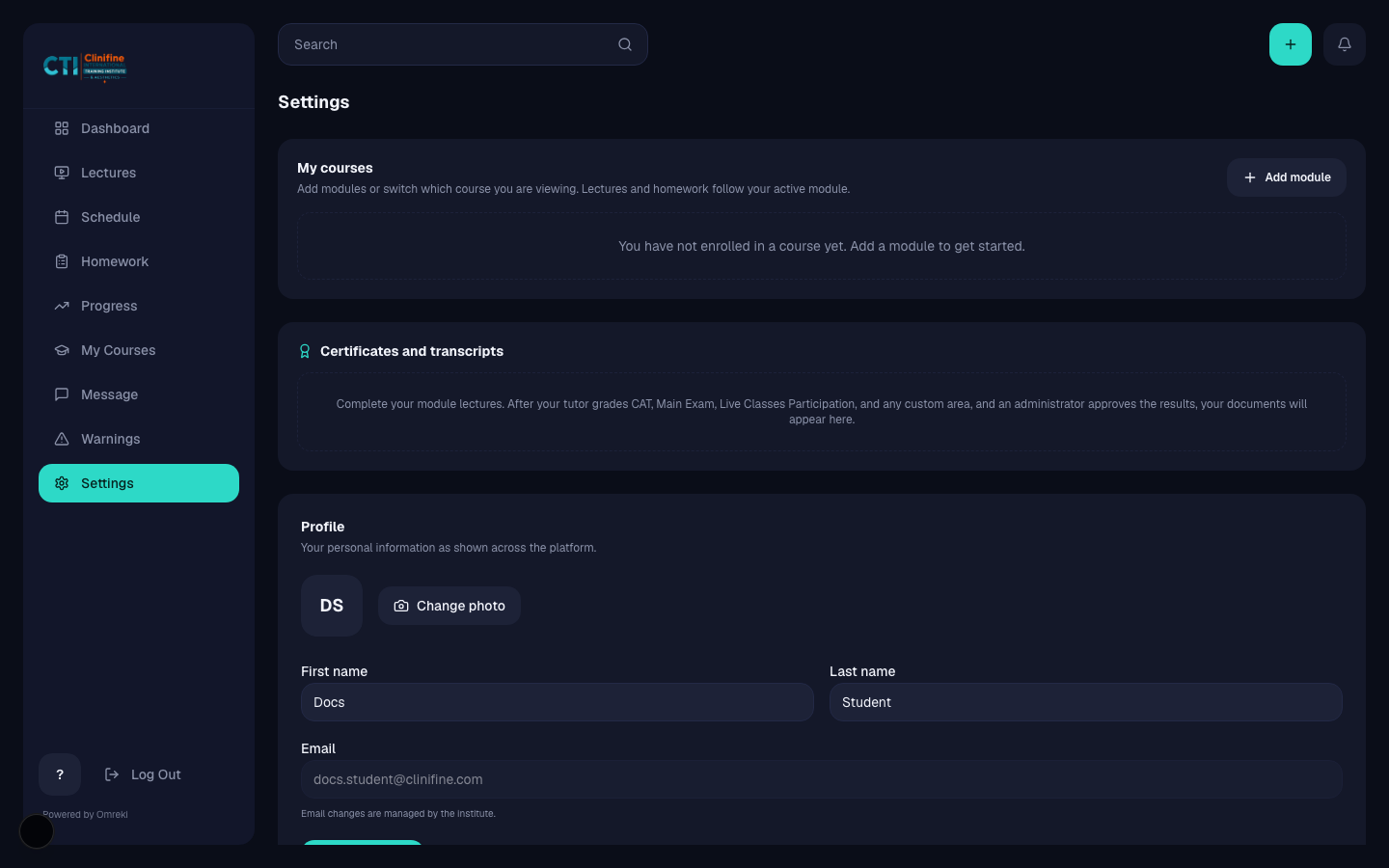
When grades are approved, certificates or transcripts appear in My Courses and Settings.
Lectures and the course player
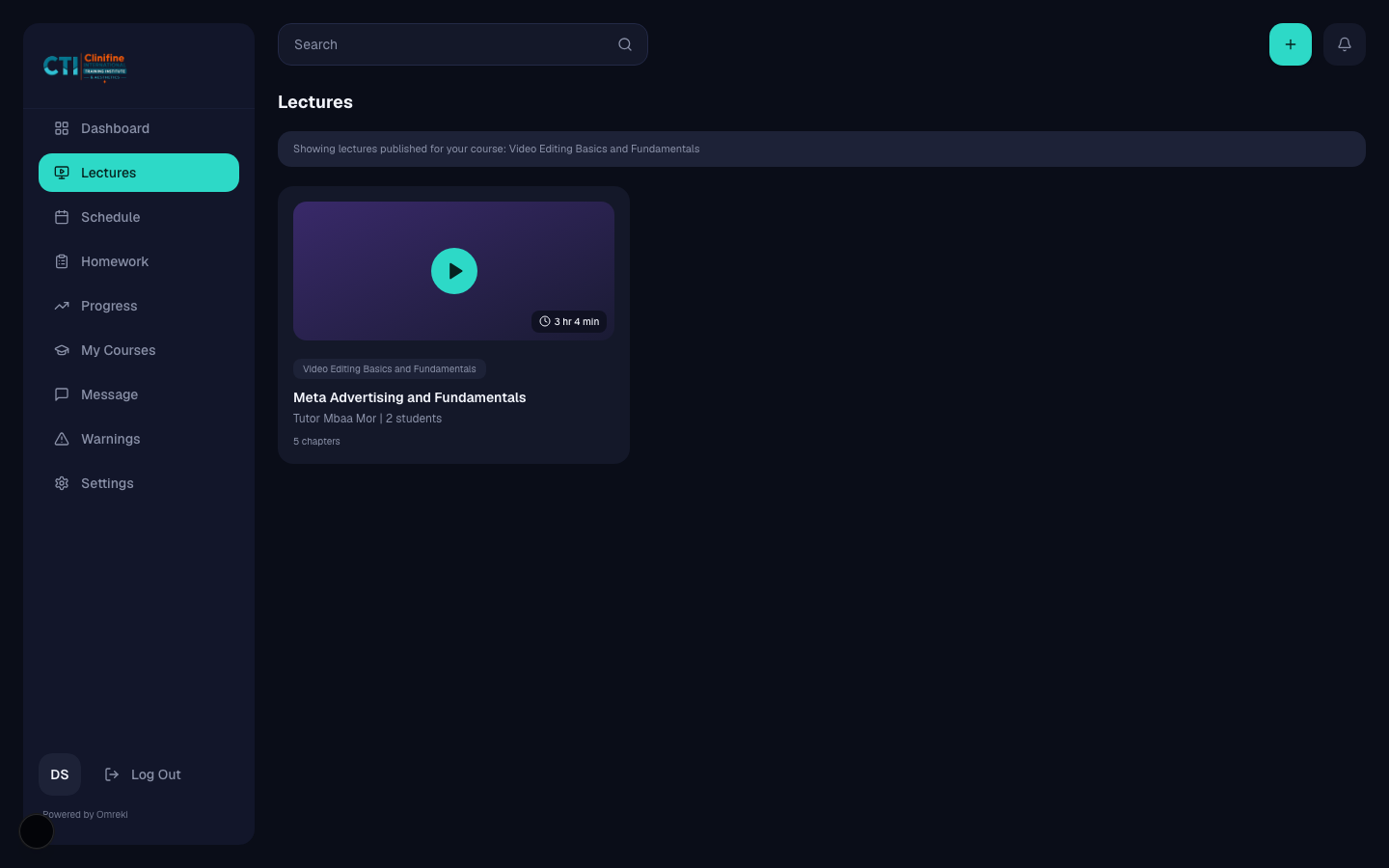
Browse enrolled lectures, then complete chapters in order.
- 1
Open Lectures
See the lecture grid for your active module.
- 2
Enter a lecture
Open a course to enter the player.
- 3
Complete chapters
Notes require reading time. Videos must finish. Quizzes must be submitted. Scheduled system blocks unlock in their time window.
- 4
Track progress
Completion updates Progress and unlocks later chapters when gated.

Homework
View assignments, attach work, and submit for tutor review.
- 1
Open Homework
See open and completed assignments.
- 2
Prepare a submission
Write your response and attach allowed files.
- 3
Submit
Send for review. If sent back, revise and resubmit.
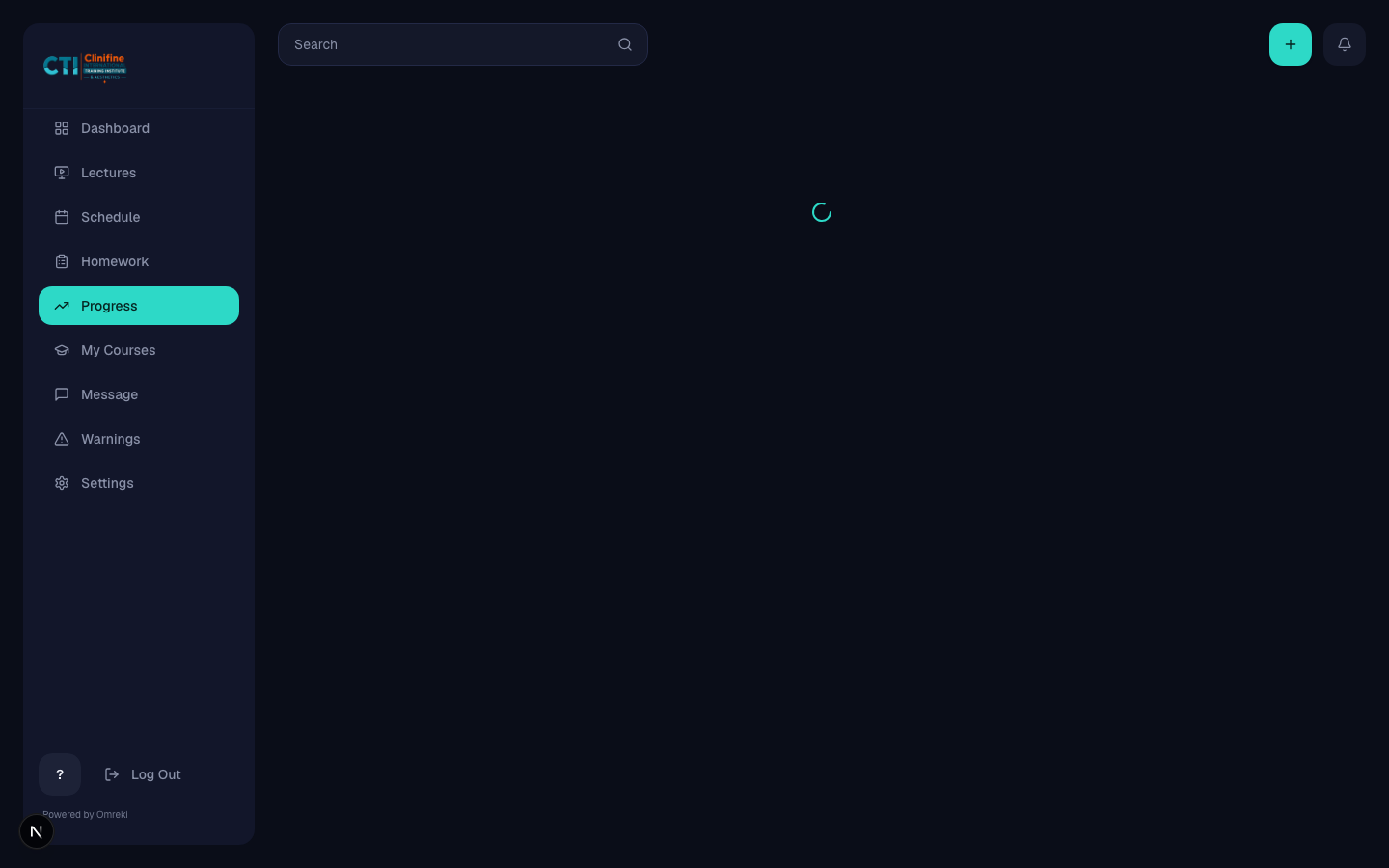
Schedule and Progress
Stay on top of live sessions and completion stats.
- Schedule shows cohort-scoped events and live sessions.
- Progress summarizes lecture and homework completion.
Messages, warnings, and settings
Communicate with tutors, read warnings, and manage profile details.
- 1
Messages
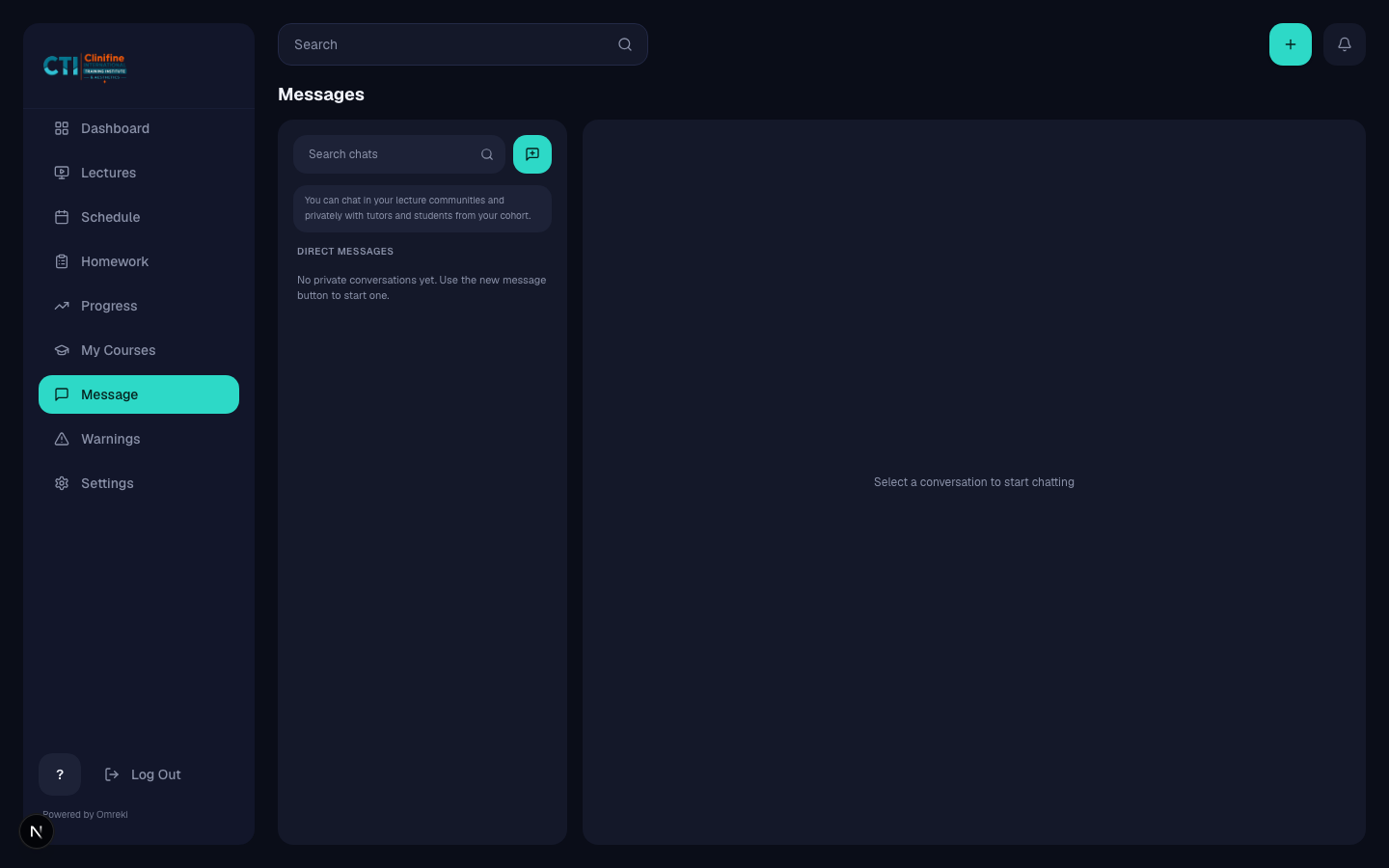
Chat with tutors for your module. Unpaid chat may prompt payment where configured.
- 2
Warnings
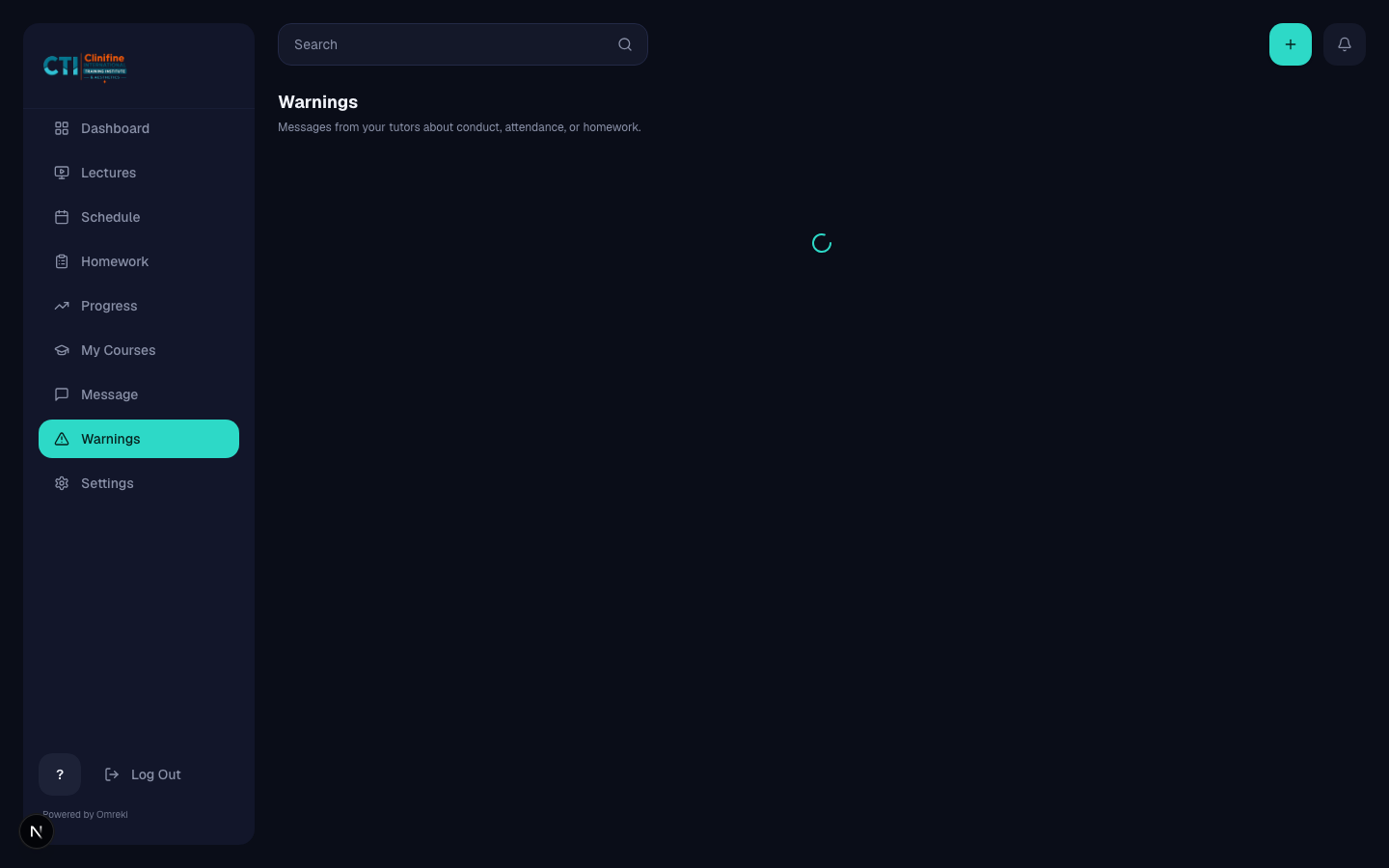
Read account warnings issued by tutors or admins.
- 3
Settings
Update profile and avatar. Courses and credentials also appear here.